
Safeguarding Academic Integrity: Take Control of AI Resistance with Tassomai’s New Settings

Key takeaways
- Tassomai provides native apps across mobile and desktop to block AI-powered browser tools from reading screen content.
- A new feature lets Teacher Admins control students' web browser access to Tassomai with three levels of restriction.
- Students blocked from web browser access receive a prompt to use the official Tassomai app to complete quizzes.
- Only Teacher Admin accounts can manage browser access settings through the ‘Manage School’ menu in Tassomai.
- Schools are advised to involve IT teams, check admin access, and set policies to support a smooth transition to app-based access.
As artificial intelligence continues to evolve at a rapid pace, educators worldwide are facing a new challenge: protecting the integrity of independent student work. Tools like Google Lens and AI-powered browser extensions can easily "read" text directly off a screen to instantly generate answers. This screen-reading vulnerability isn't unique to Tassomai; it affects virtually any web-based learning tool or homework platform accessed through a standard web browser.
At Tassomai, we believe technology should support genuine learning, not replace it. That’s why we were the first learning platform to deliver a dedicated, "AI-resistant" solution. By offering native apps across mobile (iOS, Android) and desktop (Windows, Mac, Linux), we effectively block these browser-based AI tools and extensions from reading screen content and providing unfair assistance. Now, we are putting direct control into the hands of schools so teachers can decide how and when their students access Tassomai.
Browser access controls
Introducing Browser Access Controls for Teacher Admins
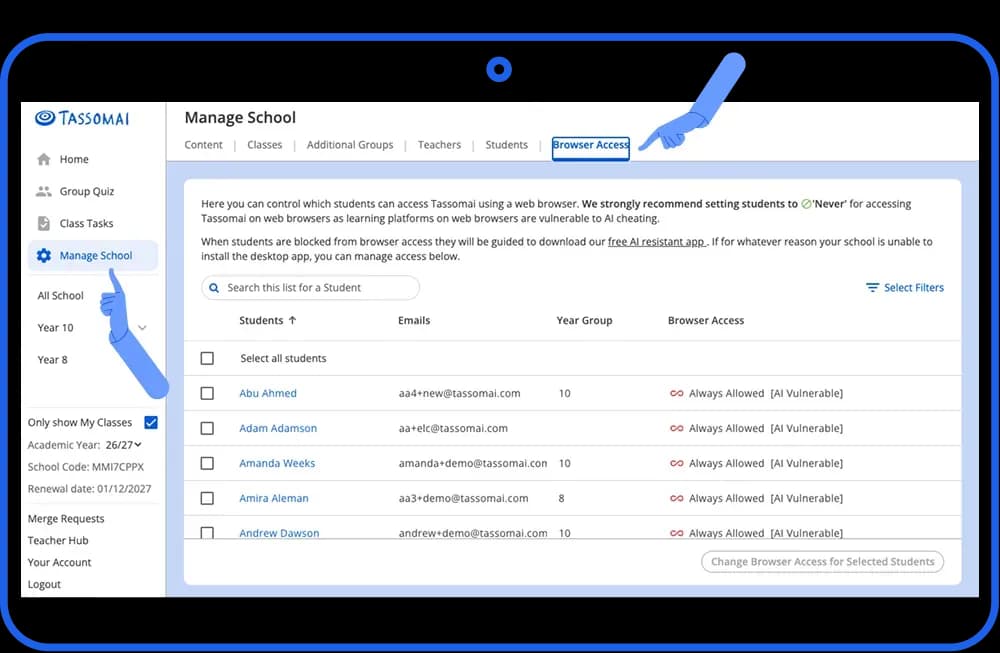
How Tassomai’s new browser access settings help schools resist AI-assisted cheating. To help schools customize their approach to AI resistance, we’ve launched a new feature that lets designated Teacher Admin accounts manage web browser access for their students, either in bulk or individually.
Admin accounts can simply log in, navigate to ‘Manage School’ in the main menu, and select the ‘Browser Access’ tab to choose between three access levels:
Always Allowed: Students can access Tassomai via web browsers at any time. (Note: This is the most AI-vulnerable setting).
Allowed in School Hours: Students can access Tassomai through web browsers during normal school hours (where teacher supervision is present), but must use the app at home.
Never Allowed: Web browser access is completely disabled. Students must always use a Tassomai app. (This is the most AI-proof setting).
Student experience
What Does This Mean for Students?
If a student attempts to log into Tassomai via a standard web browser while restrictions are active, they will be unable to start any quizzes. Instead, they will see a clear prompt directing them to open or download the official Tassomai app for their device. This seamless transition ensures students know exactly where to go to complete their work without disrupting their learning routine.
Implementation guidance
How schools can prepare to use Tassomai’s browser access controls effectively
To ensure a smooth transition for both staff and students, we recommend taking a few simple steps:
Involve Your IT Team: Share this update with your school’s IT manager so they can install the app across all school computers. You can download the Tassomai Desktop App for Windows, Mac, or Linux directly from our site.
Check Admin Access: Only accounts designated as 'Teacher Admin' have access to the ‘Manage School’ menu tab. If you need to upgrade a teacher account to Teacher Admin status, simply get in touch with our team.
Set Your Policy: Decide which setting best aligns with your school’s homework and digital learning strategy to ensure students get the maximum benefit from their revision.
Protecting genuine effort is essential to building student confidence and accurate learning data. With our desktop and mobile apps, along with these new browser controls, you have the power to keep your school’s learning environment secure, fair, and AI-resistant.
Have questions or need help setting up browser access for your school? Reach out to your account manager or contact our support team at hello@tassomai.com.
When students log in on browsers they will be unable to start quizzes. They will be directed to open or download the app for the device they are using.
When using web-based software it’s possible for students to use browser tools like Google Lens to read the screen and provide answers, these tools can’t be used inside any dedicated Tassomai apps.
You can choose between 3 settings for browser access:
Always allowed - this is the most AI vulnerable setting and means students can always use web browsers
Allowed in school hours - this setting allows students to use Tassomai in web browsers during school hours
Never Allowed - this is the most AI proof and means students can never access Tassomai on web browsers
No, only designated Teacher Admin accounts can change this setting, these accounts have the ‘Manage School’ option in their menu. Please get in touch with us to change an account to a Teacher Admin account.