
Getting Started as a Parent on Tassomai
Welcome to Tassomai!

This blog post is written for new private subscribers. It covers everything you need to know once you’ve signed up to the program and created yours and your child’s accounts, including:
Getting your child started with Tassomai
We recommend that one of the first things you do is to show your child this video. It explains how to use the program, but crucially why it will help them.
After watching the video all your child really needs to do is regularly complete their Daily Goal - aiming for at least four times a week.
Your child can sign in from any internet enabled device (laptop, mobile etc.), but most prefer to use our app. It’s free and they simply sign in using their username and password.
Download the app from Google Play (for Android phones) or the App Store (for Apple phones).
Understanding your “Parent Dashboard”
You also have your own admin account where you can monitor your child’s usage and performance. If you’ve only just signed up there won’t be any information available yet - however we’d recommend that when your child starts using the program you sign in regularly.
You can also access your child’s Tree via a tab on the parent dashboard
“The Tree” is a visual representation of your child’s knowledge and understanding based on their Tassomai usage and the questions they’ve answered.
Watch your child’s tree grow over time, and use it to identify and discuss topics they’ve understood and those they need help with.
Pausing Content
Your child might find that they are tested on some topics they haven’t yet covered in class - this is intentional, as it allows users to benefit from something called “flipped learning”*. However, if your child would rather wait until these topics are covered by their teacher, they are able to pause content.
They can do this by going into the “Subjects Tab” on their account, finding the relevant topic, and clicking “pause”. They can unpause it in the exact same way.
Want to find out more? Watch our short video guide.
N.B. You will need to make sure your child unpauses this topic at some point, or they will not be tested on it. If you want to pause or unpause topics for your child yourself, then you’ll need to click on the “switch to this account” button to log in as them.
*Usually, in the classroom, learning occurs by one topic being taught in a structured, pre-planned lesson. How much students understand this is then assessed in a later lesson. With flipped learning, the students research or explore new content independently, without a pre-planned structure - this allows teachers to see how well they handle brand-new material.
Your weekly parent report
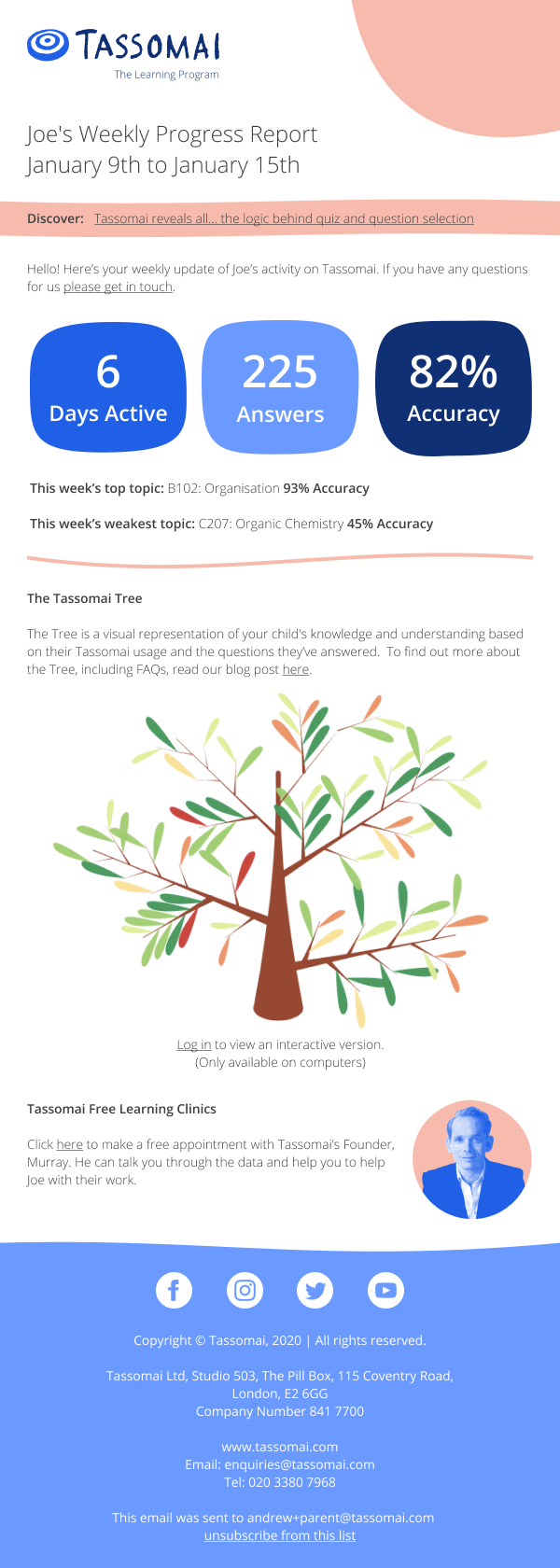
You’ll receive an email every Monday morning going over your child’s activity for the last week. It will tell you how many days they’ve logged on, how many daily goals they’ve completed and how many questions they’ve answered.
It will also tell you which topics they’re doing best on, which they’re struggling on, and which they’ve improved the most on.
If you don’t want to regularly login to your account, then keep an eye on the report and make sure they’re completing at least four daily goals each week.
The Grade Guarantee
The GCSE Science course comes with a grade guarantee - if your child achieves 100% progress by the date of the exam, then they are guaranteed a 7-9 grade, or you will get a full refund. (Click here for full terms & conditions)
Please note - if you are on a GCSE Science course the Daily Goal will not push your child to satisfy the guarantee by completing the course. Instead, it is designed to encourage engagement. Our data shows that even a small amount of progress through the content will lead to a significant increase in grades, and so we want to ensure students use the site regularly, instead of setting what can be an unrealistic target.
If you want to ensure your child satisfies the guarantee, then there are two things to focus on, both of which you can monitor via your account:
Projected final progress
Accuracy
Projected final progress shows you how much of the course your child will complete if they keep answering questions at a similar rate and accuracy. It is important to remember that this is a lagging metric; it will take a few days to calculate, and then a few days to react to changes in behaviour.
Accuracy is crucial for making progress. The quality of your child’s answers impacts how much progress they make far more than the quantity. We recommend your child focuses on answering questions correctly - and remember, Googling the answer isn’t cheating! This actually helps them to learn.
Any questions or feedback?
If you ever have any questions or feedback please don’t hesitate to get in touch. We’re always happy to help with any problem you have (no matter how small you think it is!) and your feedback is absolutely essential to improving Tassomai.
Feel free to email admin@tassomai.com, call 020 3380 7968, or just get in touch on social media.